| Multiple Hot Key shortcuts have been added to help navigate and efficiently use TMS. You can use Hotkey functions to quickly move your cursor around a window. And you can copy and paste data easily within the TMS interface. Use the options descibred below to facilitate your working with TMS. |
| Function | Shortcut Key | Details |
| Open your Interface Clipboard Window | CTRL + ~ | To view data that has been copied from various windows into your TMS Interface Clipboard. Hint: The clipboard contents are not copied between browsers |
| Copy two subsequent OUTPUT fields and paste data to INPUT fields. | CTRL + A | To copy both the initial and number of a car, or, "Block To" fields or "Switch To" fields, or City and State values. |
| Copy two subsequent INPUT fields. (Use CTRL+A to paste the data into INPUT fields). | CTRL + B | To copy both the initial and number of a car, or, "Block To" fields or "Switch To" fields, or City and State values. |
| Copy a series of fields from one window to paste to another. | CTRL + F, CTRL + T, CTRL + Z | To copy multiple fields in standing order (left to right). Place your cursor in the first field, and press CTRL + F (Copy From). Then, place your cursor in the last field to
copy and press CTRL + T (Copy To). To paste the values in another window, place your cursor in the starting field, and press CTRL + Z. Hint: The window where the data is pasted has to have the same layout as the window where the data was copied from. For example, you can copy the data from one EDI Blocking Table rule to another EDI Blocking Table rule, or, from one Customer File to another Customer File. |
| Copy up to 10 different fields. | CTRL + 1 (2, 3, 4, 5, 6, 7, 8, 9, 0) | If you have several data fields that you want to copy. Each value copied will remain in your Clipboard until the Clipboard is cleared. For example, Press CTRL+1 to copy a car initial, then CTRL+2 to copy the car number, then CTRL+3 to copy the waybill number, etc. To paste, use CTRL+F1, CTRL+F2, CTRL+F3, etc to paste the individual values in the same order they were copied. |
| Position the cursor to the next line of data fields. | CTRL + L | To move your cursor to the next line of data fields. This eliminates the need to TAB through each field in the header section of the window. |
| Position the cursor in the Home field | CTRL + H | To move your cursor to the First field on any screen. This eliminates the need to TAB through each field to get back to the header section of the window. |
| Move your cursor quickly between the header section of the window and the detail section. | CTRL + Q | To move your cursor down to the detail section of a window, while it is currently in the header section, press CTRL + Q. The cursor will move to the first line of detail on the
screen. Press CTRL + Q again to move the cursor back to the previous field in the header section of the screen. |
| To enable Data Grid copy: | |
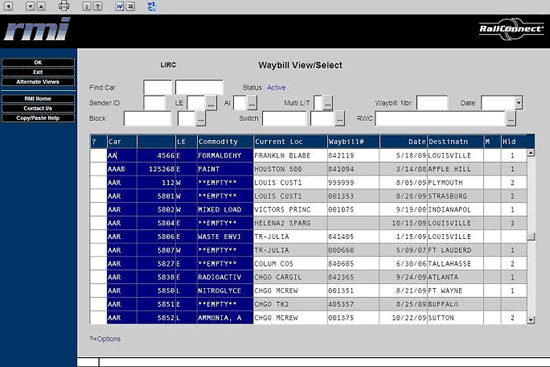
| You can copy and paste sections of a data grid within TMS. To enable this function, you must verify the settings in the Web Client interface.
1. Click on the Lite client option  at the top of the TMS interface Browser window. at the top of the TMS interface Browser window. 2. On the Blank Window that appears, go to the Edit Menu, and Select Options. 3. On the Edit Options window that appears, select the Copy Tab. Under the Format Section, ensure that you have the Copy As Table selected:  4. Next, select the Paste tab. Also, under the Format section, ensure that you have Paste as Table selected:  5. Click OK to close the Edit Options window, then close the Lite Client window. 6. Once this has been set up, you can copy any number of rows and/or columns, and paste them into another screen or application. To copy/paste, use your mouse to drag and select the data, then, right click on the selected data, and choose Copy from the menu that appears. Then, to paste the data, place your cursor at the point you want to paste, right click again, and choose Paste. |
 |